

Gouly Light App
Smarter Control for Every Outdoor Lighting Project
Control your permanent outdoor lights from one intuitive app. Gouly Light combines WiFi and Bluetooth connectivity with pixel-level color control, dynamic lighting effects, music sync, smart schedules, and voice control for a more convenient lighting experience.
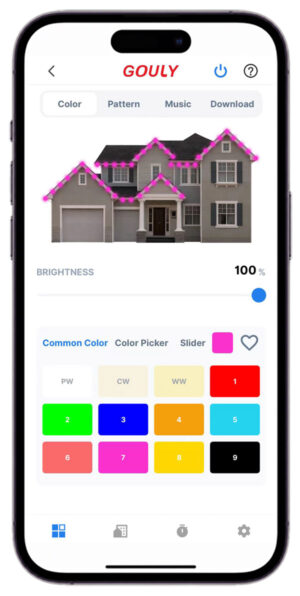
Brand New App: Gouly Light
Gouly Light gives you full control over your outdoor lighting system, whether you are at home or away. Connect through WiFi for remote access or Bluetooth for direct local control, then personalize every zone, color, effect, and schedule with ease.


The Next Generation Smart Lighting Ecosystem
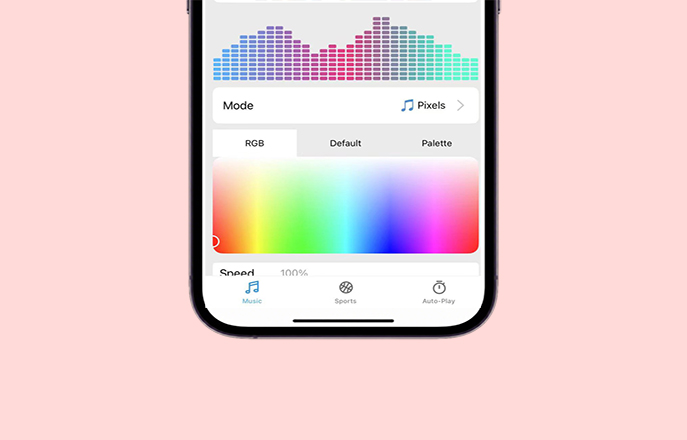
Music Sync
Control your outdoor lighting hands-free with Alexa, Google Assistant, Siri, and supported AI voice services. Turn lights on or off, change colors, and activate lighting scenes using simple voice commands.
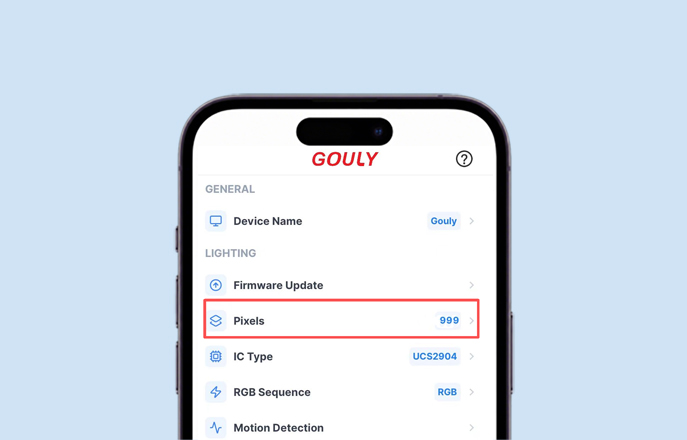
Up to 999 Pixels
Built for larger outdoor lighting projects, Gouly Light supports up to 999 pixels per channel to deliver detailed, consistent, and flexible lighting displays.
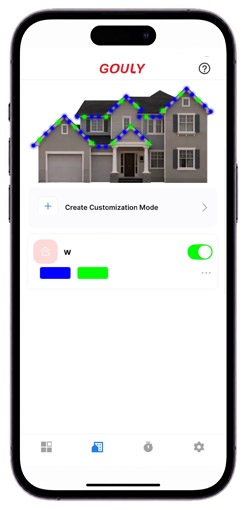
Live Playing Edit
Users can view and edit lighting settings while the scene is still playing. Color, brightness,speed and scene modes can be adjusted without stopping the current effect, making it easier for installation, testing and live demonstrations.
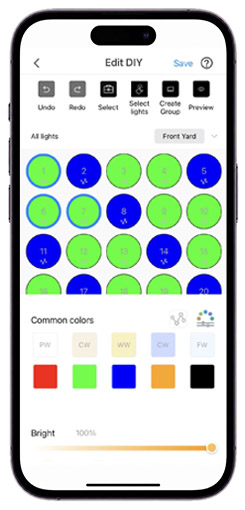
Personalized Lighting, Made Simple
Choose from 24 built-in lighting modes, including solid color, gradient, chase, flowing, and jumping effects. Adjust brightness, speed, and color temperature, select custom RGB colors, save favorite looks, and view the current lighting status in real time.
Light That Moves With Sound
Turn music into an immersive lighting experience. Gouly Light responds to sound through the phone microphone, device microphone, built-in music, or line-in input, creating lighting effects that move with every beat.
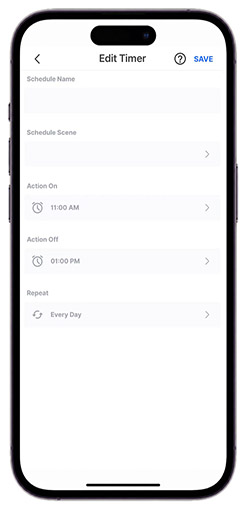
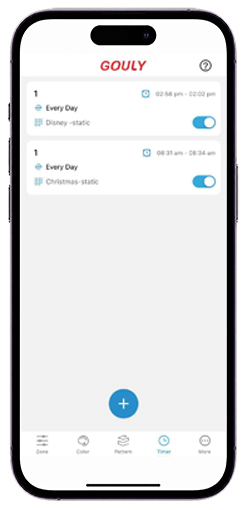
Smart Schedules for Every Occasion
Schedule lights to turn on and off automatically for daily routines, holidays, birthdays, and special occasions. Create weekly or yearly cycles, set sunrise and sunset automation, and let your lighting change at exactly the right time.
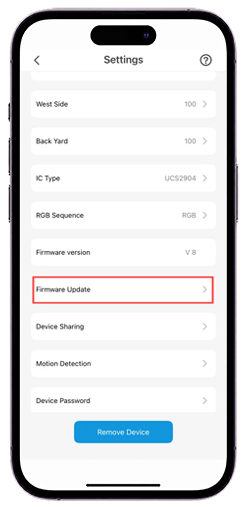
WiFi + Bluetooth Firmware Update
Firmware updates are supported through both WiFi and Bluetooth. Even when the network is unstable, updates can still be completed through Bluetooth, making maintenance easier for installers and end users.
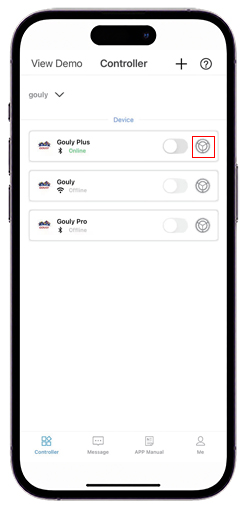
Quick Access Settings
The settings entrance has been moved to the device connection interface, allowing users to access settings directly without navigating through multiple menus.This simplifies the operation process and makes device management, parameter adjustment and function setup faster and more intuitive.
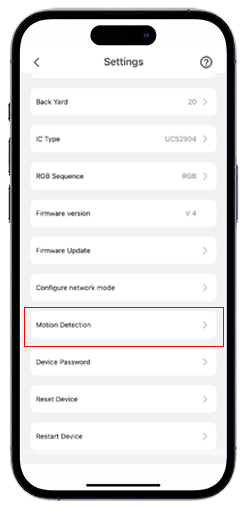
Radar Motion Sensor Support
Supports radar motion sensor control. Different lighting scenes can be triggered when people move through different areas, such as entrance lighting, pathway lighting or garden ambience scenes.
FAQs
Find answers to common questions about the GOULY app, device setup, lighting control, and troubleshooting. If you cannot find the answer you need or the issue still cannot be resolved, please contact us for further assistance.
For group function you can only use group function when your controllers are connected with WIFI you can not combine single channel controller and four channel together you can connect different WIFI with different controller and then make them in a group you can add more controllers in a group if they are close to each other you can set same pattern to the controllers in same group For light the lights will show last pattern after it restart About reset controller for 1 channel controller, after reset it will show green color and for 4 channel controller, after reset it will show red color Please DO NOT change password of controller in case of you forget it and need to reset it physically, this will cost more time and unsafe if your controller is in high place when you climb the ladder after reset controller, all timers will disappear and you need to set it by yourself again. When you do troubleshooting, please find reason in the app first, then check hardware problem.
If you are unable to log in, please check the following:
Check the country code
Make sure the selected country code is correct.Verify your phone number or email address
Confirm that your phone number or email address has been entered correctly.Reset your password
Tap “Forgot Password” to reset your password and regain access to your account.Check uppercase and lowercase letters
Passwords may be case-sensitive. Pay attention to similar characters such as I / i and O / o.Remove extra spaces
Make sure there are no extra spaces before or after your email address or password.Update the app
Please update the app to the latest version and try logging in again.
If your lights are not turning on, please check the following possible causes and solutions:
Power supply or controller issue
The power supply or controller may not be working properly.
Solution: Replace the power supply or controller and test the lights again.No connection between the controller and the first light
The controller may not be properly connected to the first light.
Solution: Check and secure the connection between the controller and the light.The lights turned off automatically after a timer ended
If a timer or schedule has ended, the lights may turn off automatically.
Solution: Open the app and select any color or scene to turn the lights back on.Brightness was accidentally set to 0%
The lights may appear to be off if the brightness is set to 0%.
Solution: Increase the brightness in the app.The power-off button was pressed by mistake
The lights may have been turned off accidentally in the app.
Solution: Open the app and select any color or scene to turn the lights back on.
If your lights are on but the color cannot be changed, please check the following:
Incorrect IC type for 48V lights
If you are using 48V lights, the IC type may be set incorrectly.
Solution: Set the IC type to UCS7604 in the app.Wrong app installed
The lights may not work properly if you are using the wrong app.
Solution: Download and install the correct app from the App Store or Google Play.Connected to the wrong controller
If you have multiple controllers, you may be connected to the wrong one.
Solution: Make sure you are connected to the correct controller.
Note: GOULY is a 1-channel controller, while GOULY Pro is a 4-channel controller.
If the app cannot find your device, please check the following:
Controller issue or no power
The controller may not be powered on or may not be working properly.
Solution: Check the power connection or replace the controller if possible.If you do not have another controller to test with, try resetting the controller:
Option 1: Open the app, go to Settings, tap Reset Device, and confirm.
Option 2: Use a thin pin or stick to press and hold the Reset button inside the small hole on the top of the controller for 5 seconds.Out of Bluetooth range or weak WiFi signal
The app may not detect the controller if you are too far away or the WiFi signal is weak.
Solution: Move closer to the controller and try searching for the device again.
If the timer does not work properly, please check the schedule settings:
Timer periods cannot overlap
Timer schedules should be set in chronological order and should not overlap.Overlapping timers may cause unexpected behavior
If two timer periods overlap, the system will follow the earlier start time and the latest end time.Example:
Timer 1: 7:00 PM–11:00 PM
Timer 2: 8:00 PM–SunriseIn this case, the lights may turn on at the earlier time and turn off at the latest end time.
Check AM/PM settings
Please make sure the time is set correctly as AM or PM.
If the radar motion sensor cannot be detected or does not respond, please check the following:
Check whether your controller supports radar sensing
Make sure your control device includes the radar sensor component or supports radar motion sensing.Reconnect the radar sensor
If the radar device does not show up, unplug the controller and power it on again. Then unplug and reconnect the radar sensor.Important: Please connect the radar sensor within 5 minutes after powering on. Otherwise, the signal may automatically turn off.
Rebind or reset the device
If the radar sensor does not detect motion at close range, try binding the radar sensor again. You can also reset the controller and then bind the radar sensor again.Check the sensing distance and area
The radar sensing distance is approximately 3–4 meters, and the detection area is fan-shaped.